Preview your Outlook calendar by hovering over te Mac Dock
I use Outlook for work, and sometimes I just want to check my schedule without switching to the Outlook window.
Outlook already has ways to show your next meeting, but I often want to see more than that. For example, how many meetings do I have this afternoon? Is there a one-hour gap between two meetings? What does tomorrow look like?
I added an Outlook Calendar preview to Dock Switcher Pro for this reason.
Dock Switcher Pro is primarily a window-switching tool for macOS. It lets you preview and switch between open windows by hovering over app icons in the Dock. On top of that, it also supports Outlook Calendar previews.
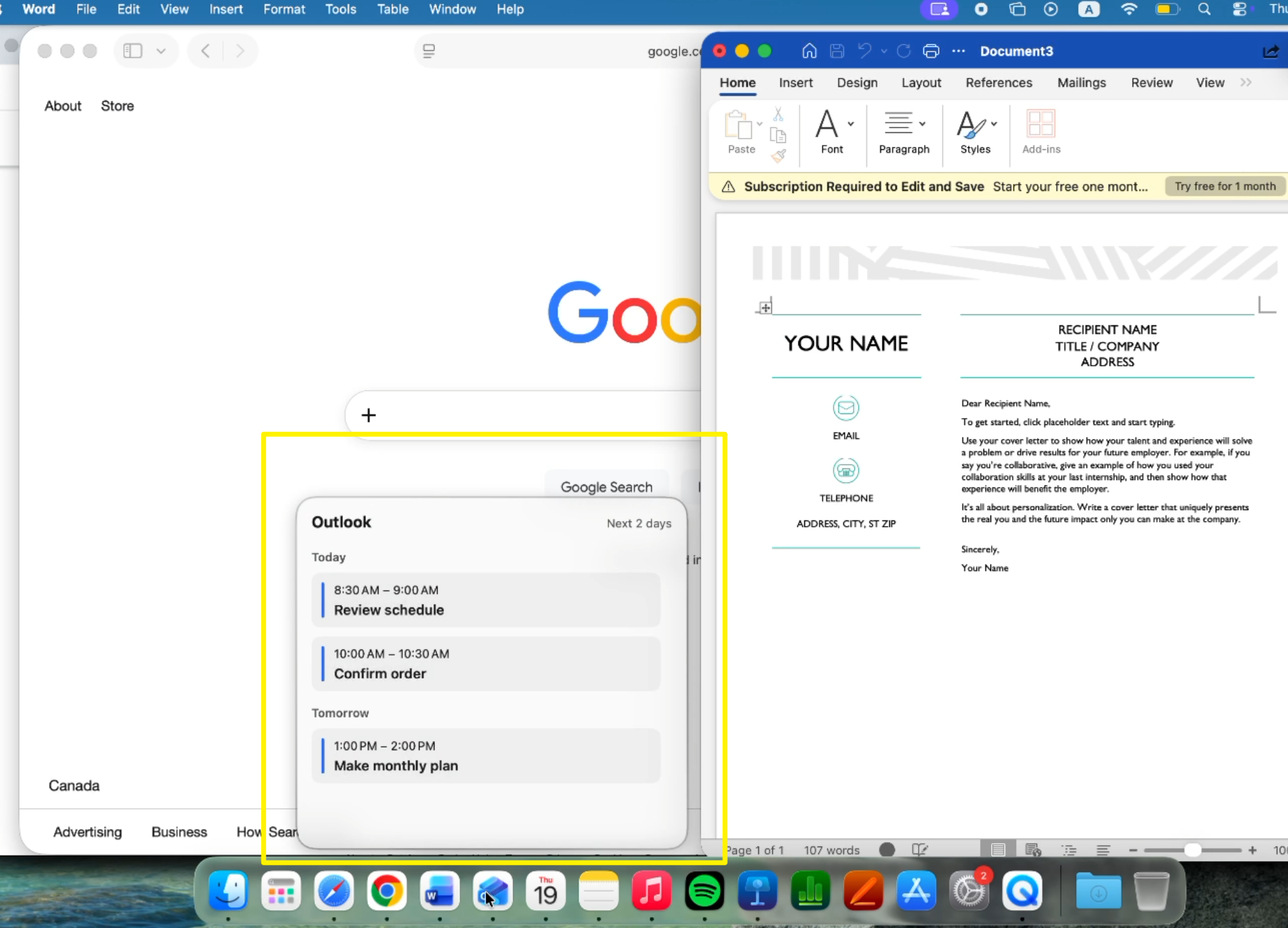
List Mode
List Mode shows your upcoming calendar events, grouped by day. You can choose a range from the next 4 hours to the next 7 days.
Each event shows its start and end time, title, and location if available. Meetings happening now or starting within the next hour are highlighted in red.
I find this useful when I just want to check what else is on my calendar today.
Timeline Mode
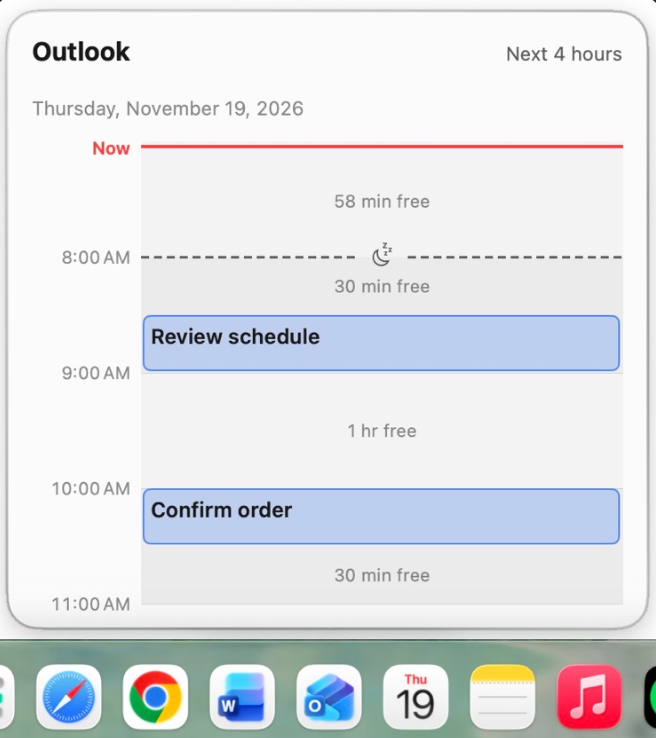
Timeline Mode is a little different. Instead of listing meetings, it displays them as blocks on a timeline.
What I like about this view is that it also shows the free time between meetings.
For example, if I have a meeting at 9 AM and another at 11 AM, I can immediately see how much time I have between them. If two meetings overlap, they appear side by side.
There’s also an option to skip non-working hours. If you’re looking at a schedule that spans overnight, you probably don’t need a huge empty section from 6 PM to 8 AM. The timeline compresses that period while keeping any scheduled meetings visible.
Two Ways to Connect Outlook Calendar
Dock Switcher Pro supports two methods for accessing your Outlook calendar.
1. Microsoft Calendar API
You can connect your Microsoft account directly through the app.
However, if you’re using a company Microsoft 365 account, your IT administrator may need to approve the connection. This is a common problem with third-party applications accessing corporate calendars.
2. Apple Calendar / Exchange
Alternatively, you can add your work Exchange account to macOS under System Settings → Internet Accounts and enable calendar synchronization.
Once your Outlook meetings appear in Apple Calendar, Dock Switcher Pro can read them through the macOS calendar integration.
This is useful if your company already allows Exchange synchronization through Apple Calendar but restricts direct access by third-party applications.
Of course, some organizations restrict both methods.
Download
The app runs on Apple Silicon Macs with macOS 14 or later. It has a 7-day free trial with all features enabled.
You can find it here:
Dock Switcher Pro — https://www.dockswitcher.co.uk/


0 Comments